
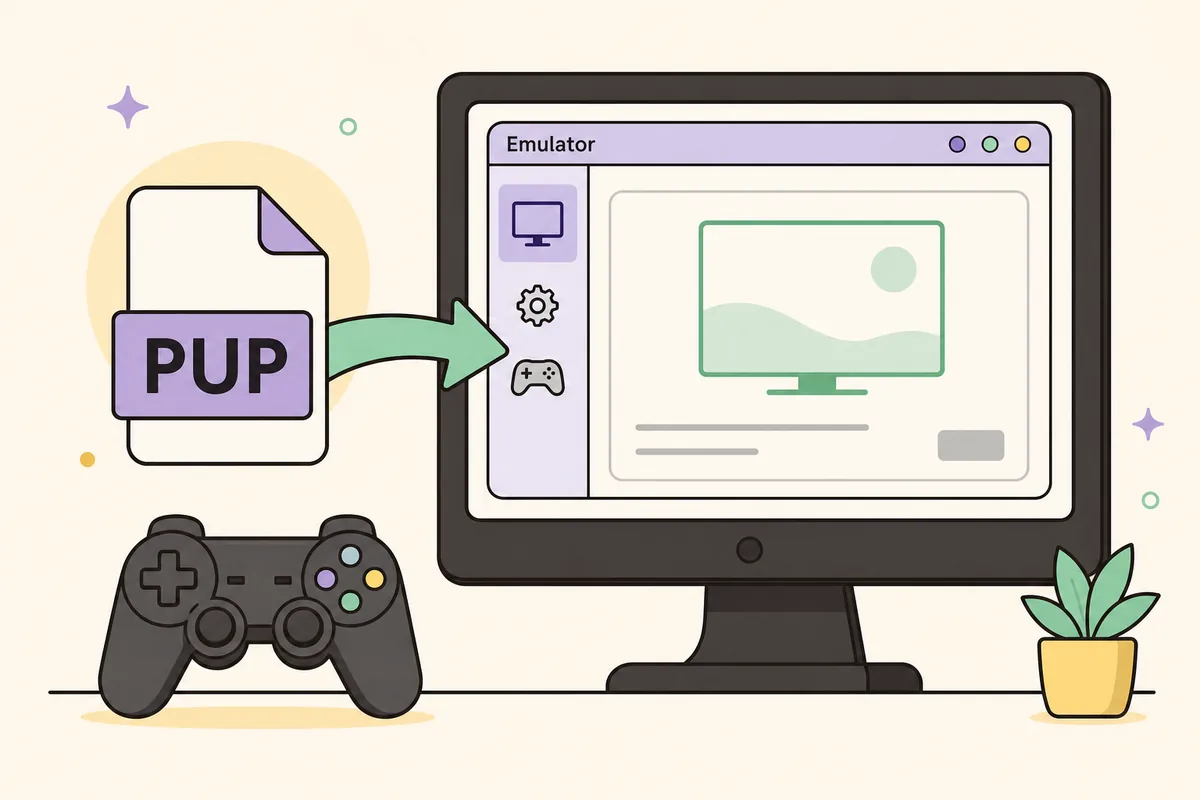
Download the latest official PS3 firmware from Sony, open RPCS3, choose File > Install Firmware, and select PS3UPDAT.PUP. RPCS3 extracts the system modules automatically. You do not need a separate PS3 BIOS file, and you should not install an unofficial PUP just because a download page labels it for an emulator.
What RPCS3 firmware you need
The emulator expects a real PlayStation 3 system software update package. The same official PUP used for a console supplies the modules RPCS3 needs.
PS3 firmware and the RPCS3 application are separate downloads maintained by different organizations. Sony publishes PS3UPDAT.PUP, while the RPCS3 project publishes emulator builds for Windows, Linux, macOS, and FreeBSD. Updating one does not automatically update the other. A current setup normally uses the newest stable RPCS3 build together with the latest official PS3 system software.
Search results often use the phrase PS3 BIOS because many older emulators need a copied console BIOS. RPCS3's setup is different. The PlayStation 3 system software is distributed as a PUP, and RPCS3 has a dedicated firmware installer that extracts the supported files. Treat websites offering a separate rpcs3-bios.zip, BIOS executable, or password-protected firmware bundle with caution.
The verified package on this page is official firmware 4.93. It is named PS3UPDAT.PUP, contains 206,197,916 bytes, and has SHA-256 158471fd834f8ea8036136b6aab43cd86c7ba73d79ca30e0af3c0fe0001cf365. Check the hash after downloading so RPCS3 does not spend time processing an incomplete or altered file.
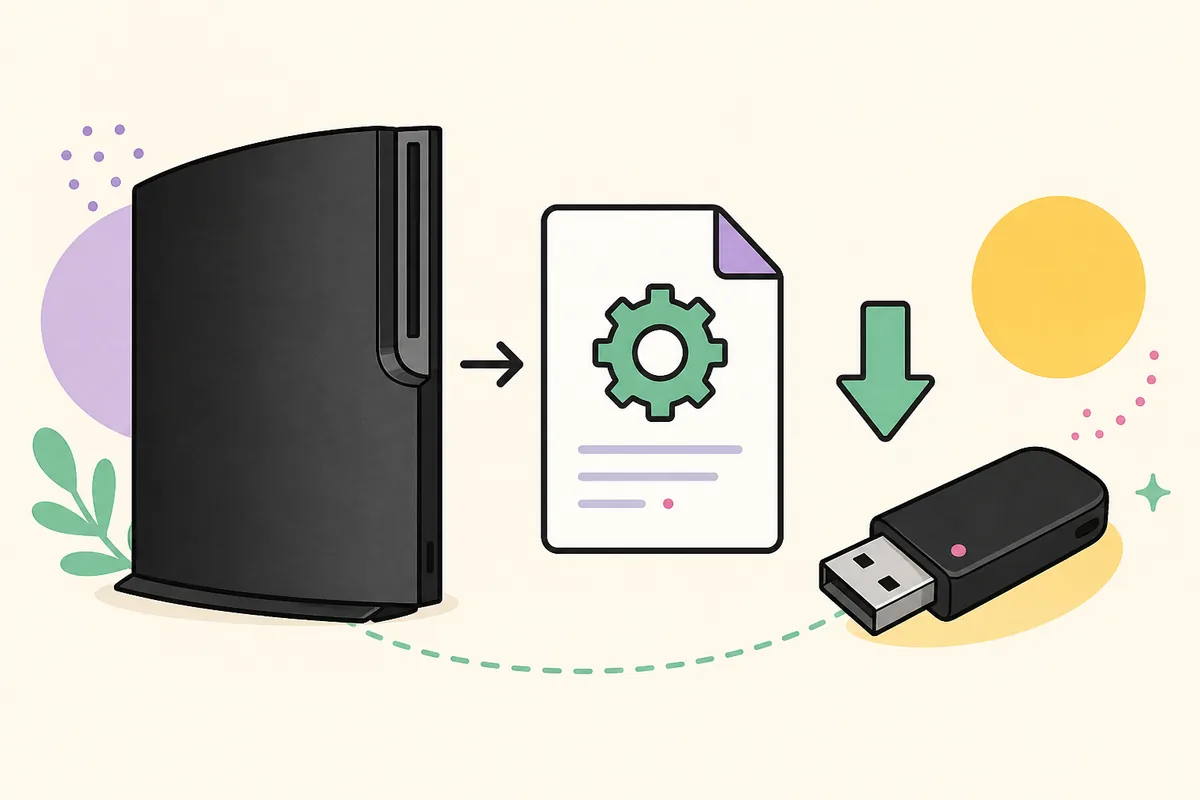
How to install PS3 firmware for RPCS3
Install the emulator first, then import the PUP from a normal local folder. There is no need to manually unpack the firmware or copy files into dev_hdd0.
- 1
Install or update RPCS3
Get RPCS3 from the official project website and extract or install it according to your operating system. Launch it once so the application can create its data folders. If an older build has setup problems, update the emulator before troubleshooting the PUP.
- 2
Download the official PUP
Use the verified firmware 4.93 button on this page. The 15-second in-page wait ends at Sony's update server. Save PS3UPDAT.PUP somewhere you can find easily, such as a dedicated firmware folder.
- 3
Verify the downloaded file
Confirm the exact byte size and calculate SHA-256. A browser download that was interrupted can still leave a partial file with a plausible name. Delete and download again if the hash differs.
- 4
Open the firmware installer
In RPCS3, open the File menu and choose Install Firmware. Browse to PS3UPDAT.PUP and select it. Do not choose Install Packages/Raps because that command handles a different package type.
- 5
Wait for extraction to finish
RPCS3 displays progress while it extracts and installs firmware modules. Do not close the emulator or remove the source file during this process. Completion should return you to the main RPCS3 window without an error.
- 6
Verify the installed version
Open RPCS3's system information or check the log after installation to confirm firmware modules were loaded. Keep the original verified PUP outside the emulator folder if you want a clean copy for future reinstalls.
Use File > Install Firmware. Do not use Install Packages/Raps, do not drag the PUP onto the game list, and do not manually extract PS3UPDAT.PUP with a generic archive tool.
RPCS3 firmware versus a PS3 BIOS
Calling the file a PS3 BIOS is a convenient search phrase, but it is technically imprecise. BIOS usually describes a small boot firmware image copied from specific hardware. Sony's PS3 system software package is a signed update container with operating-system modules, resources, and version metadata. RPCS3 knows how to process that official container through its firmware installation command.
This difference matters for safety and setup. A page promising a tiny BIOS binary for RPCS3 is not providing the standard Sony update workflow. The official PUP is roughly 196.65 MiB for version 4.93, not a small mystery ROM. It should come from Sony's update infrastructure or another source whose exact file hash can be matched to the official package.
Firmware installation also does not supply copyrighted game data. You still need your own legally obtained games and, where applicable, dumps or licenses prepared according to RPCS3 documentation. PS3 Firmware Wiki does not host game ROMs, decryption keys, RAP files, or cracked packages.
| Component | Purpose | Where it comes from |
|---|---|---|
| RPCS3 application | Runs and emulates PS3 software | Official RPCS3 project |
| PS3UPDAT.PUP | Installs PS3 system software modules | Sony PS3 update server |
| Game data | Provides the title you want to run | Your own lawful disc or digital source |
| Emulator settings | Controls rendering, CPU, audio, and patches | Created locally by RPCS3 |
Fix common RPCS3 firmware installation errors
If RPCS3 says the selected file is corrupted or invalid, check the SHA-256 before changing emulator settings. A mismatched hash points to the download, not the GPU renderer or game configuration. Re-download from the verified Sony source and confirm that the completed file is 206,197,916 bytes.
If the file picker cannot find the package, confirm that your browser did not save a ZIP, HTML page, or temporary partial download. Enable file extensions in the operating system and look for PS3UPDAT.PUP. The PUP should not need extraction. Move it to a short local path if cloud-sync permissions or non-ASCII folder names cause access problems.
If RPCS3 closes, freezes, or reports permission errors during extraction, update RPCS3 and try a writable application or data directory. Antivirus quarantine and controlled-folder access can block file creation. Review the RPCS3 log for the first error rather than repeatedly reinstalling firmware. Preserve the log text when requesting support because it identifies whether the problem is parsing, storage, permissions, or an outdated build.
| Symptom | Likely cause | First action |
|---|---|---|
| Invalid or corrupted PUP | Incomplete or different file | Compare SHA-256 and byte size |
| File does not appear | Wrong extension or partial download | Show extensions and locate PS3UPDAT.PUP |
| Install stops during extraction | Permissions, storage, or old RPCS3 | Update RPCS3 and use a writable folder |
| Game still does not boot | Game-specific issue, not firmware | Read the game compatibility entry and RPCS3 log |
How to update RPCS3 firmware later
When Sony releases a newer PS3 system software package, repeat File > Install Firmware with the newly verified PUP. RPCS3 can update its installed firmware modules through the same workflow. Do not delete emulator data or reinstall every game merely because the firmware version changed.
Check both release channels independently. A new RPCS3 build can improve emulation without a new Sony firmware, and a new Sony firmware can appear while your RPCS3 application stays unchanged. Updating the emulator is normally the more frequent maintenance task. Read RPCS3 release information and per-game compatibility notes before changing advanced settings.
Keep the firmware package and its checksum record in a separate folder if you maintain multiple machines. Name the containing folder with the version while leaving the file itself as PS3UPDAT.PUP. That preserves the expected package name without confusing 4.93 with an older PUP.